

CLICK Programming Software has no simulator. ClickNick adds one: run your saved program on your laptop, work the switches, and ask why an output did or didn't come on.

pyrung, the engine underneath, is checked against a real CLICK, case by case: conformance results · how it was built.
Also: nickname autocomplete, the Address Editor, Check Program, Review Changes, and your ladder as Python after every save.
CLICK stays CLICK. ClickNick gives you better tools around it.
Documentation and tour: https://pyrung.com/clicknick/
Important
ClickNick never edits your .ckp project file directly. You review proposed changes, and nothing becomes part of the project until you save it in CLICK Programming Software. Close CLICK without saving to discard changes made through ClickNick.
ClickNick is a free, open-source Windows application. It runs locally, with no telemetry or required cloud service. ClickNick is an independent project: not official, and not affiliated with or endorsed by AutomationDirect. The simulator and checks don't replace testing. Test on the real machine, with proper safeguards, before anything interacts with people.
ClickNick supports Windows 10 and 11 and CLICK Programming Software v2.60-v4.00.
Open PowerShell and run:
powershell -ExecutionPolicy ByPass -c "irm https://astral.sh/uv/install.ps1 | iex"Already have uv? Update it with uv self update (or winget upgrade astral-sh.uv) and skip the install. Other installation methods are available in the uv documentation.
uv tool install clicknick
clicknick
To upgrade later, run uv tool upgrade clicknick. To try the latest release without installing it, run uvx clicknick@latest.
Then open your CLICK project as usual. ClickNick detects the open project and connects to it.
On Windows x64, a separate database driver normally isn't needed. If connecting fails, see connection help.
Install with pip instead
Python 3.13 or 3.14 is required.
pip install clicknick
python -m clicknick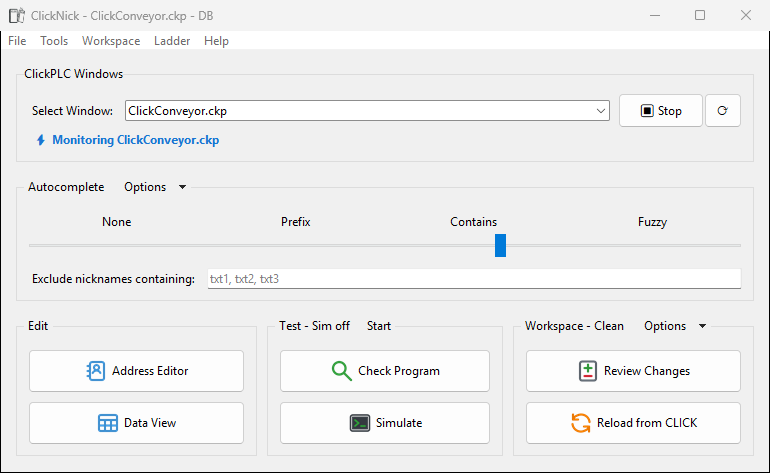
- Nickname autocomplete appears directly in CLICK instruction dialogs, so you can find
Valve5instead of rememberingC123. - Address Editor supports bulk nickname, comment, block, and annotation work with validation, search/replace, undo/redo, fill down, and structure cloning.
- Tag Browser organizes nicknames into a navigable hierarchy and recognizes related arrays.
- Data View tools add nickname lookup, grouped insertion, and drag-and-drop reordering.
- Project navigation filters show tag relationships such as inputs, outputs, upstream, downstream, and isolated tags.
ClickNick started by fixing a few editor annoyances - especially the need to remember addresses. You do not need Git, Python experience, an LLM, or a new programming environment to benefit from it. Start with autocomplete, open the Address Editor when it helps, and run Check Program when you want another set of eyes.

Simulate is an offline CLICK test bench: your hardware drawn from System Configuration, with LEDs and switches, and the Console in a pane at the bottom (pop it out into its own window if you like). It lets you:
- Run the saved program and work the panel like the machine, in real time or scan by scan.
- Force points and set up machine conditions without changing the live PLC.
- Work from saved PLC and tag data while troubleshooting.
- Right-click a point or use the Console to ask why something happened - or why it did not.
- Ask how to reach a state, including routes that must pass through or avoid particular conditions.
- Connect the Data View Editor or an HMI over Modbus at
127.0.0.1:502, like the real PLC.
Interrupts, PID, and high-speed instructions are not yet supported.
Save the project in CLICK before opening Simulate so ClickNick can read the latest ladder files.
ClickNick automatically generates a readable, executable pyrung version of the saved ladder in the open CLICK project. Simulate runs it, and Check Program reads it, catching common ladder mistakes and questionable patterns without running the machine. Findings include the relevant ladder source, severity, and a suggested fix.

Save the project in CLICK before opening Check Program, too.
The generated pyrung project begins as a temporary workspace. That is convenient for quick checks and experiments. When you want tests, notes, and other engineering work to accumulate with the machine, create or select a persistent workspace folder from ClickNick.
In a workspace, you can:
- Read the ladder as ordinary, structured Python source with PLC scan semantics.
- Add automated tests alongside the ladder program.
- Keep notes, test fixtures, source history, and other project-specific files.
- Use normal software tools such as diffs, Git, editors, and coding agents.
- Edit generated ladder source and use Review Changes to review the proposed CLICK rungs, take or skip each difference, and paste the ones you take into CLICK step by step.
- Use Reload from CLICK to discard workspace changes and return to the saved CLICK program.
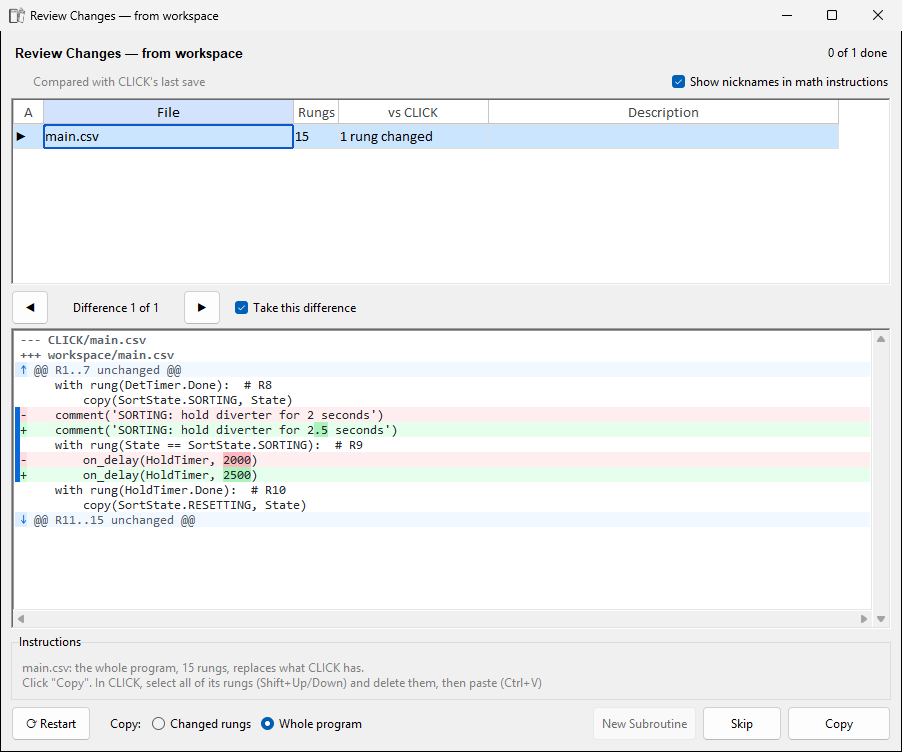
ClickNick preserves a recovery snapshot before regeneration replaces generated source. Files outside ClickNick's generated areas - such as your tests, notes, and editor configuration - remain yours.
ClickNick is built on pyrung, the engine that runs your ladder as Python. That's what makes Check Program, the Console, and why / how possible, and it's what lets you run pytest, a diff, or a coding agent against the workspace. Edits go back the other way: Review Changes shows the rung diff and puts the rungs you take on the clipboard, you paste and save in CLICK. How it fits.
- Nickname autocomplete: matching, filters and what the list offers.
- Address Editor, Tag Browser and Data Views: bulk edits, search and replace, blocks, the nickname outline, and Data Views built by name.
- Simulator, Review Changes and connection help: how each works, step by step.


- Report a bug or request a feature
- Ask a question or share an idea
- View the source
- Read the changelog
- Read the license
ClickNick is beta software. Review Address Editor, Data View, and ladder changes before saving them in CLICK.