
A smart input method switcher for Hyprland that automatically switches input methods based on the active window. Built with Go for performance and reliability.
- 🚀 Automatic Input Method Switching: Seamlessly switches input methods based on active application windows
- ⚙️ Flexible Configuration: YAML-based configuration with hot-reload support
- 🔔 Rich Notification System: Multiple notification backends with emoji support
- 🎯 Pattern Matching: Supports regex and string matching for window classes and titles
- 📁 Hot Configuration Reload: Watch configuration file changes and reload without restart
- 🛠 Multiple Input Methods: Full support for Fcitx5, Rime
- 📊 Comprehensive Logging: Configurable log levels with multiple output options
- 🌐 Cross-Platform Icons: Support for both emoji and traditional desktop icons
- 🎨 Omarchy GUI Plugin: Native Quickshell visual overlay for Omarchy 4.0 with live window picking and rule management
This application is specifically designed for Hyprland and requires:
- Hyprland (any recent version)
- hyprctl command-line tool (comes with Hyprland)
- One of the supported input method frameworks:
- Fcitx5 (recommended)
- Rime (can work with Fcitx5)
To get the best experience, add the following to your Hyprland configuration (~/.config/hypr/hyprland.conf):
# Input method environment variables
env = GTK_IM_MODULE,fcitx
env = QT_IM_MODULE,fcitx
env = XMODIFIERS,@im=fcitx
env = SDL_IM_MODULE,fcitx
env = GLFW_IM_MODULE,ibus

# Auto-start input method
exec-once = fcitx5 -d  # For Fcitx5

# Auto-start hypr-input-switcher
exec-once = hypr-input-switcher

# Optional: Hyprland window rules for better input method handling
windowrulev2 = float,class:^(fcitx5-config-qt)$
windowrulev2 = float,class:^(org.fcitx.*)$-
Install Fcitx5:
# Arch Linux
sudo pacman -S fcitx5 fcitx5-gtk fcitx5-qt fcitx5-configtool

# Ubuntu/Debian
sudo apt install fcitx5 fcitx5-frontend-gtk3 fcitx5-frontend-qt5 fcitx5-config-qt

# Fedora
sudo dnf install fcitx5 fcitx5-gtk fcitx5-qt fcitx5-configtool
-
Install Input Methods:
# Chinese (Rime)
sudo pacman -S fcitx5-rime  # Arch
sudo apt install fcitx5-rime  # Ubuntu

# Japanese
sudo pacman -S fcitx5-mozc  # Arch
sudo apt install fcitx5-mozc  # Ubuntu

# Korean
sudo pacman -S fcitx5-hangul  # Arch
sudo apt install fcitx5-hangul  # Ubuntu
-
Configure Fcitx5:
# Run configuration tool
fcitx5-configtool

# Add input methods you need
# Set keyboard layout and input methods
- notify-send (libnotify - GNOME, KDE, etc.)
- dunstify (Dunst notification daemon)
- hyprctl (Hyprland native notifications)
- swaync-client (Sway Notification Center)
- mako (Mako for Sway/Wayland)
Download the latest stable release from the GitHub Releases page.
# Download and install the latest release
curl -s https://api.github.com/repos/icyleaf/hypr-input-switcher/releases/latest \
  | grep "browser_download_url.*Linux_x86_64.tar.gz" \
  | cut -d : -f 2,3 \
  | tr -d \" \
  | wget -qi -

# Extract and install
tar -xzf hypr-input-switcher_Linux_x86_64.tar.gz
sudo cp hypr-input-switcher /usr/local/bin/
sudo chmod +x /usr/local/bin/hypr-input-switcherFor testing the latest development version, you can download snapshot builds from GitHub Actions:
-
Visit the Actions page
-
Click on the latest successful build from the
mainbranch -
Download the artifact named
hypr-input-switcher-snapshot-YYYY-MM-DD -
Extract and install:
# Unzip the downloaded artifact
unzip hypr-input-switcher-snapshot-*.zip

# Install
cd hypr-input-switcher-snapshot-*
sudo cp hypr-input-switcher_linux_amd64_v1/hypr-input-switcher /usr/local/bin/
sudo chmod +x /usr/local/bin/hypr-input-switcher
Note: Snapshot builds require a GitHub account to download artifacts. These are automatically built from the latest
mainbranch and may contain unstable features.
# Install from AUR using your preferred AUR helper
paru -S hypr-input-switcher-bin

# Or manually
git clone https://aur.archlinux.org/hypr-input-switcher-bin.git
cd hypr-input-switcher-bin
makepkg -si# Download the .deb package from releases
wget https://github.com/icyleaf/hypr-input-switcher/releases/latest/download/hypr-input-switcher_amd64.deb
# Install
sudo dpkg -i hypr-input-switcher_amd64.deb
sudo apt-get install -f # Fix dependencies if needed# Download the .rpm package from releases
wget https://github.com/icyleaf/hypr-input-switcher/releases/latest/download/hypr-input-switcher_x86_64.rpm
# Install
sudo rpm -i hypr-input-switcher_x86_64.rpm-
Clone the repository:
git clone https://github.com/icyleaf/hypr-input-switcher.git cd hypr-input-switcher -
Install dependencies:
go mod tidy
-
Build and install:
# System-wide installation
mise run build
sudo mise run install

# Or user installation
mise run install-dev
Add to your Hyprland config (~/.config/hypr/hyprland.conf):
# Auto-start hypr-input-switcher
exec-once = hypr-input-switcher

# Or with custom config
exec-once = hypr-input-switcher --config=~/.config/hypr-input-switcher/my-config.yaml

# Or with debug logging
exec-once = hypr-input-switcher --log-level=debug --watch-
Ensure Hyprland is running:
# Check if Hyprland is active
echo $HYPRLAND_INSTANCE_SIGNATURE

# Test hyprctl command
hyprctl version
-
Run with default settings:
hypr-input-switcher
-
Run with custom configuration:
hypr-input-switcher --config=/path/to/your/config.yaml
-
Enable hot-reload for development:
hypr-input-switcher --watch --log-level=debug
For users running the Omarchy Linux distribution (4.0+), an official visual rule configuration overlay is available: omarchy-hypr-input-switcher.
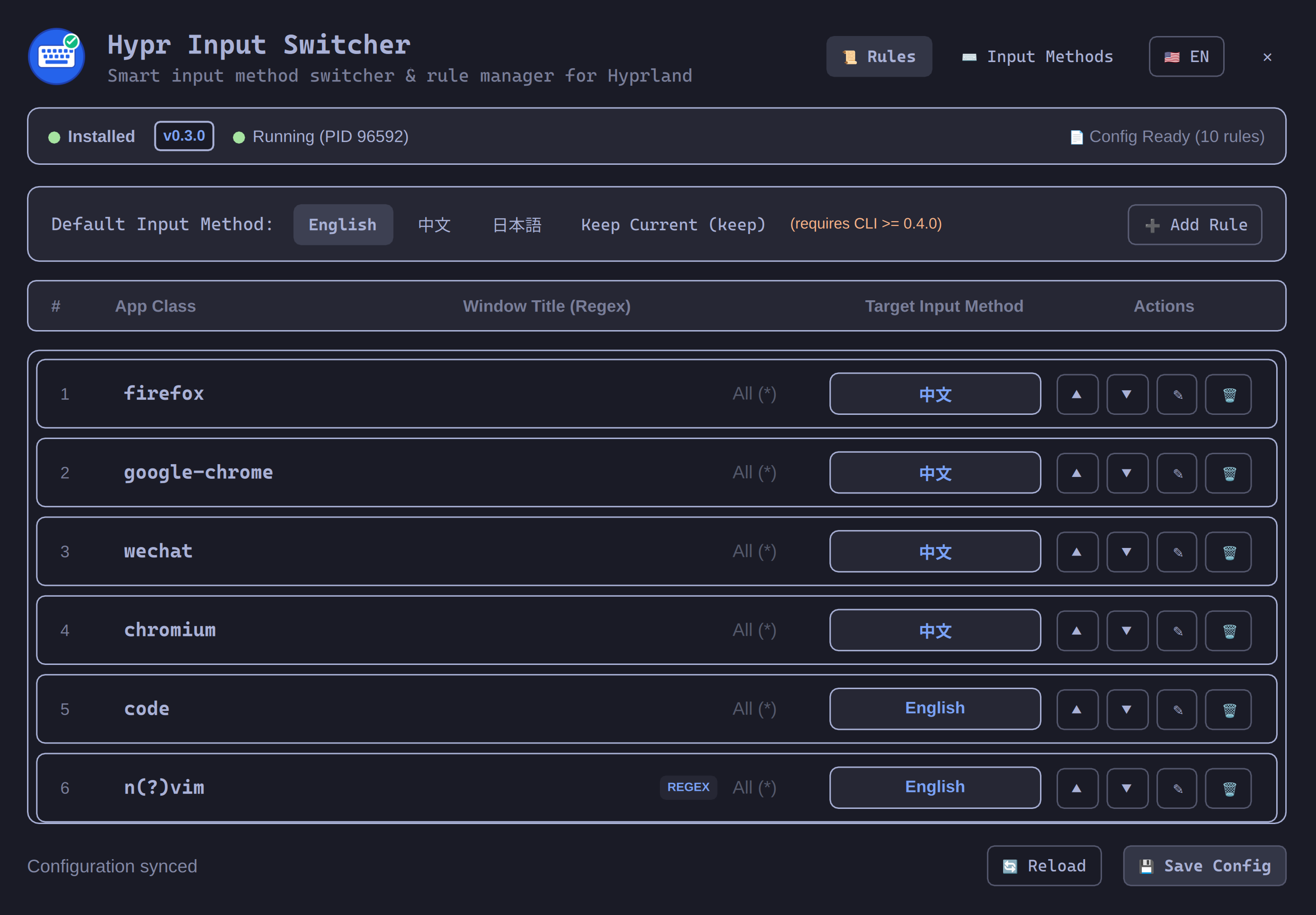
- 🪟 Visual Rule Management: View, add, edit, reorder, and remove window rules without manually editing YAML.
- 🎯 Native Window Picker: Click-to-pick any active window on screen using
slurpto automatically populate class and title. - ⌨️ Input Method & Rime Schema Management: Manage display names, backends, and inline Rime schemas.
- 🔍 Live System Diagnostics: Real-time status indicator showing binary, version, daemon process state, and a 1-click
▶ Start Servicebutton. - ⚡ Zero Runtime Dependencies: 100% Pure Quickshell & JavaScript (No Python required).
- 💾 Hot Sync: Directly syncs to
~/.config/hypr-input-switcher/config.yamlwith instant hot-reloading.
# Install via Omarchy CLI
omarchy plugin install https://github.com/icyleaf/omarchy-hypr-input-switcher

# Or toggle the overlay directly once installed
omarchy-shell overlay toggle icyleaf.hypr-input-switcher
For more details, check out the Omarchy Plugin Documentation.
- User config:
~/.config/hypr-input-switcher/config.yaml - System config:
/etc/hypr-input-switcher/config.yaml - Template:
configs/default.yaml(copied to the user config on first run)
If no configuration file exists, a default one will be created automatically.
To find the correct window class names for your applications:
# Get current active window info
hyprctl activewindow

# List all windows with their classes
hyprctl clients

# Monitor window changes in real-time
hyprctl monitorsThe full annotated template is configs/default.yaml. A condensed example:
version: 2
description: Hyprland Input Method Switcher Configuration

# Input method definitions (labels; `english` means the keyboard layout)
input_methods:
  english: keyboard-us
  chinese: rime
  japanese: rime

# Application-specific rules (use hyprctl to find class names)
client_rules:
  - class: firefox # Firefox browser
    input_method: chinese
  - class: google-chrome # Chrome browser
    input_method: chinese
  - class: code # VS Code
    input_method: english
  - class: kitty # Kitty terminal
    input_method: english
  - class: org.wezfurlong.wezterm # WezTerm terminal
    input_method: english
  - class: "^(org.telegram.desktop)$" # Telegram (regex)
    input_method: chinese
  - class: firefox # Firefox with specific title
    title: ".*GitHub.*"
    input_method: english

# Layer-shell overlay rules (match by namespace, e.g. Omarchy plugins)
layer_rules:
  - namespace: omarchy-menu # Omarchy Launcher
    input_method: english
  - namespace: icyleaf-qalculator # icyleaf calculator
    input_method: english

# Default input method when no rules match
# Use "keep" to preserve the current input method instead
default_input_method: english

# Fcitx5 configuration
fcitx5:
  enabled: true
  rime_input_method: rime

# Rime schema mappings
rime_schemas:
  chinese: rime_frost # Your Rime schema name
  japanese: jaroomaji # Japanese input schema

# Notification settings
notifications:
  enabled: true
  duration: 2000
  show_on_switch: true
  show_app_name: true
  icon_path: "~/.local/share/hypr-input-switcher/icons"
  methods:
    - hyprctl # Use Hyprland's native notifications first
    - notify-send # Fallback to libnotify
    - dunstify # Dunst notifications
  force_method: "" # Force specific method
  disabled_methods: [] # Disable specific methods

# Display names for input methods
display_names:
  english: English
  chinese: 中文
  japanese: 日本語

# Icons (supports emoji and icon names)
icons:
  english: "🇺🇸"
  chinese: "cn.svg"
japanese: "/absolute/path/to/jp.png"The application uses hyprctl to get window information:
See the Hyprland wiki for the full reference: Using hyprctl and Window Rules.
# Current active window
hyprctl activewindow -j

# All windows
hyprctl clients -j

# Monitor information
hyprctl monitors -j

# Workspace information
hyprctl workspaces -jYou can match windows based on:
- class: Application class name (most common)
- title: Window title (optional, supports regex)
- address: Window address (advanced usage)
Some tools are not windows at all. Omarchy plugins such as the calculator and emoji picker are layer-shell surfaces: Hyprland anchors them to an output instead of managing them as a toplevel window. That has two consequences:
- They never appear in
hyprctl clientsand can never become the active window, so awindowruleor aclient_rulesentry keyed onclass/titlewill never match them. - They are identified by their namespace instead, and Hyprland announces them
on the event socket with
openlayer/closelayer.
Background: Layer Rules and Using hyprctl in the Hyprland wiki.
Use layer_rules to switch the input method while such a surface is open. Each
rule matches one namespace exactly (no regex) and is evaluated before
client_rules, so an open overlay takes precedence over the window underneath.
When the overlay closes, the rules for the window underneath are re-applied
automatically.
layer_rules:
  - namespace: icyleaf-qalculator # Raycast-style calculator overlay
    input_method: english
  - namespace: omarchy-emojis # Emoji picker overlay
    input_method: english
  - namespace: icyleaf-clipboard # `keep` lets the overlay inherit the IM
    input_method: keep
The same namespace can be open on several monitors at once; the rule stays in effect until the last instance closes.
layer_rules matches the namespace, not the window class. To list the currently
open layer surfaces and their namespaces:
hyprctl layersSee the Hyprland wiki for the full hyprctl command reference.
To watch open/close events live:
# Replace with your own socket path
socat -u UNIX-CONNECT:"$XDG_RUNTIME_DIR/hypr/$HYPRLAND_INSTANCE_SIGNATURE/.socket2.sock" -
You will see lines such as openlayer>>icyleaf-qalculator. Common Omarchy
namespaces are omarchy-bar, omarchy-background, omarchy-osd, and the
per-plugin namespaces like icyleaf-qalculator.
Use these commands to identify window classes:
# Method 1: Get active window
hyprctl activewindow | grep "class:"

# Method 2: List all windows
hyprctl clients | grep -E "(class|title):"

# Method 3: Real-time monitoring
watch -n 1 'hyprctl activewindow | grep -E "(class|title):"'
Common application classes:
- Browsers:
firefox,google-chrome,chromium - Terminals:
kitty,alacritty,org.wezfurlong.wezterm - Editors:
code,nvim,emacs - Communication:
org.telegram.desktop,discord,slack
# Basic usage
hypr-input-switcher

# Specify configuration file
hypr-input-switcher --config=/path/to/config.yaml

# Enable hot-reload
hypr-input-switcher --watch

# Set log level
hypr-input-switcher --log-level=debug

# Force stdout logging
hypr-input-switcher --log-stdout

# Show version
hypr-input-switcher version

# Combine options
hypr-input-switcher --config=./my-config.yaml --watch --log-level=debugAll command line options can be set via environment variables:
export HYPR_INPUT_SWITCHER_CONFIG="/path/to/config.yaml"
export HYPR_INPUT_SWITCHER_LOG_LEVEL="debug"
export HYPR_INPUT_SWITCHER_WATCH="true"
export HYPR_INPUT_SWITCHER_LOG_STDOUT="true"

hypr-input-switcherhypr-input-switcher/
├── cmd/
│ └── hypr-input-switcher/
│ └── main.go # Application entry point
├── internal/
│ ├── app/
│ │ └── app.go # Main application logic
│ ├── config/
│ │ ├── config.go # Configuration structures
│ │ └── manager.go # Config management with hot-reload
│ ├── inputmethod/
│ │ ├── switcher.go # Input method switching logic
│ │ ├── fcitx5.go # Fcitx5 backend implementation
│ │ └── rime.go # Rime backend implementation
│ └── notification/
│ └── notifier.go # Multi-backend notification system
├── pkg/
│ └── logger/
│ └── logger.go # Logging utilities
├── configs/
│ └── default.yaml # Default configuration template
├── mise.toml # Tool versions and build/install tasks
├── go.mod # Go module definition
└── README.md # This file
Enable configuration hot-reload to modify settings without restarting:
hypr-input-switcher --watchThe application will automatically detect changes to the configuration file and reload settings in real-time.
The application supports both regex and string matching for window classes and titles:
client_rules:
  # Exact string match
  - class: firefox
    input_method: chinese

  # Regex pattern
  - class: "^(code|codium)$"
    input_method: english

  # Match both class and title
  - class: firefox
    title: ".*GitHub.*"
    input_method: english

  # Match terminals
  - class: "^(kitty|alacritty|wezterm)$"
input_method: englishUse the reserved value keep when a window should preserve whichever input
method is currently active. It does not need to be declared in input_methods
or rime_schemas.
client_rules:
  # Keep the current input method when switching to Chrome
  - class: google-chrome
    input_method: keep

# Keep the current input method for every window not matched above
default_input_method: keepEnglish is the fcitx5 inactive state: switching to english deactivates
fcitx5 (Controller1.Deactivate), so keystrokes fall through to the keyboard
layout. To switch to a Rime-backed method, the switcher activates fcitx5, selects
the Rime schema, and the method becomes active again.
The fcitx5 controller keeps reporting the configured input method name even
while it is inactive (for example CurrentInputMethod still returns rime
after deactivation). The controller state (Controller1.State) is what
distinguishes the two:
| State | Meaning | Reported as |
|---|---|---|
0 |
fcitx5 is not running | english |
1 |
running, input method idle | english |
2 |
running, input method on | rime / schema label |
Rime's ASCII mode (Rime1.SetAsciiMode) is intentionally not used: it is a
sticky state that fcitx5's own Ctrl+Space toggle does not clear, so leaving it
on traps the user in a keyboard-layout/ASCII loop.
Configure notification priority and methods:
notifications:
  methods:
    - hyprctl # Hyprland native (recommended for Hyprland)
    - swaync-client # SwayNC
    - dunstify # Dunst
    - notify-send # libnotify fallback
  force_method: "hyprctl" # Force Hyprland notifications
disabled_methods: ["mako"] # Disable specific methodsTasks are defined in mise.toml. Run mise tasks to list them.
# Build and run with development config
mise run run-dev

# Build only
mise run build

# Run tests
mise run test

# Clean build artifacts
mise run cleanEnable debug logging to troubleshoot issues:
hypr-input-switcher --log-level=debug --log-stdoutContributions are welcome! Please feel free to submit a Pull Request. For major changes, please open an issue first to discuss what you would like to change.
- Fork the repository
- Create your feature branch (
git checkout -b feature/amazing-feature) - Commit your changes (
git commit -m 'Add some amazing feature') - Push to the branch (
git push origin feature/amazing-feature) - Open a Pull Request
- "Hyprland is not running": Ensure you're running this inside a Hyprland session
- "hyprctl command not found": Install Hyprland or ensure it's in your PATH
- Configuration file not found: The application will create a default config if none exists
- Input method not switching:
- Check if the input method names match your system configuration
- Verify Fcitx5 is running:
ps aux | grep fcitx5 - Test manual switching:
fcitx5-remote -s rime
- Notifications not showing:
- Verify your notification daemon is running
- Test with:
hyprctl notify 1 2000 "rgb(ff1ea3)" "Test notification"
- Window class not matching: Use
hyprctl activewindowto get correct class names
- Check if Hyprland is running:
hyprctl version - Check the debug logs:
hypr-input-switcher --log-level=debug - Verify your configuration:
hypr-input-switcher --config=/path/to/config.yaml --log-level=debug - Test window detection:
watch -n 1 'hyprctl activewindow | grep class' - Open an issue on GitHub with logs and configuration details
# Check Hyprland environment
echo $HYPRLAND_INSTANCE_SIGNATURE

# Monitor window changes
hyprctl --batch "clients; activewindow"

# Test input method switching manually
busctl --user call org.fcitx.Fcitx5 /controller org.fcitx.Fcitx.Controller1 Activate         # Rime active
busctl --user call org.fcitx.Fcitx5 /rime org.fcitx.Fcitx.Rime1 SetSchema s rime_frost       # Chinese
busctl --user call org.fcitx.Fcitx5 /controller org.fcitx.Fcitx.Controller1 Deactivate       # English
fcitx5-remote                 # Get current state (1 = idle/English, 2 = active)
fcitx5-remote -n              # Get current input method name

# Test notifications
hyprctl notify 1 3000 "rgb(ff1ea3)" "Test notification"This project is licensed under the MIT License - see the LICENSE file for details.
- Hyprland community for the excellent window manager
- Fcitx5 and Rime developers for robust input method frameworks
- All contributors and users who help improve this project