
Render JSON Canvas (
.canvas) files as interactive node graphs right inside VS Code. Preview markdown notes, notebooks, code, and charts side-by-side. Navigate with vim keys. Talk to an AI companion that sees your canvas and works on it with you — no API key needed. Works over Remote SSH. Obsidian-compatible.
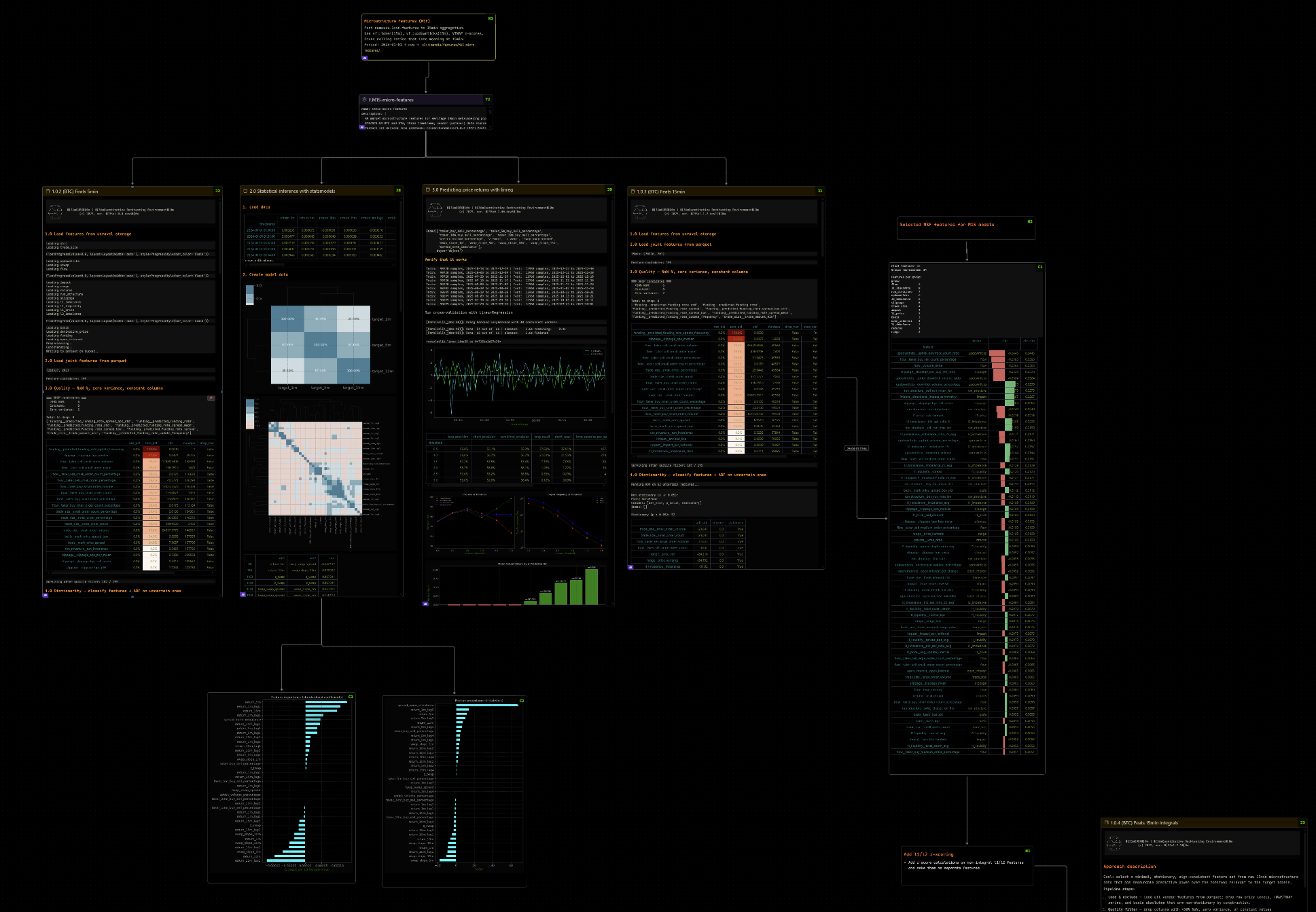
A full research canvas — notebook charts, correlation matrices, backtest results, and code all on one spatial board.
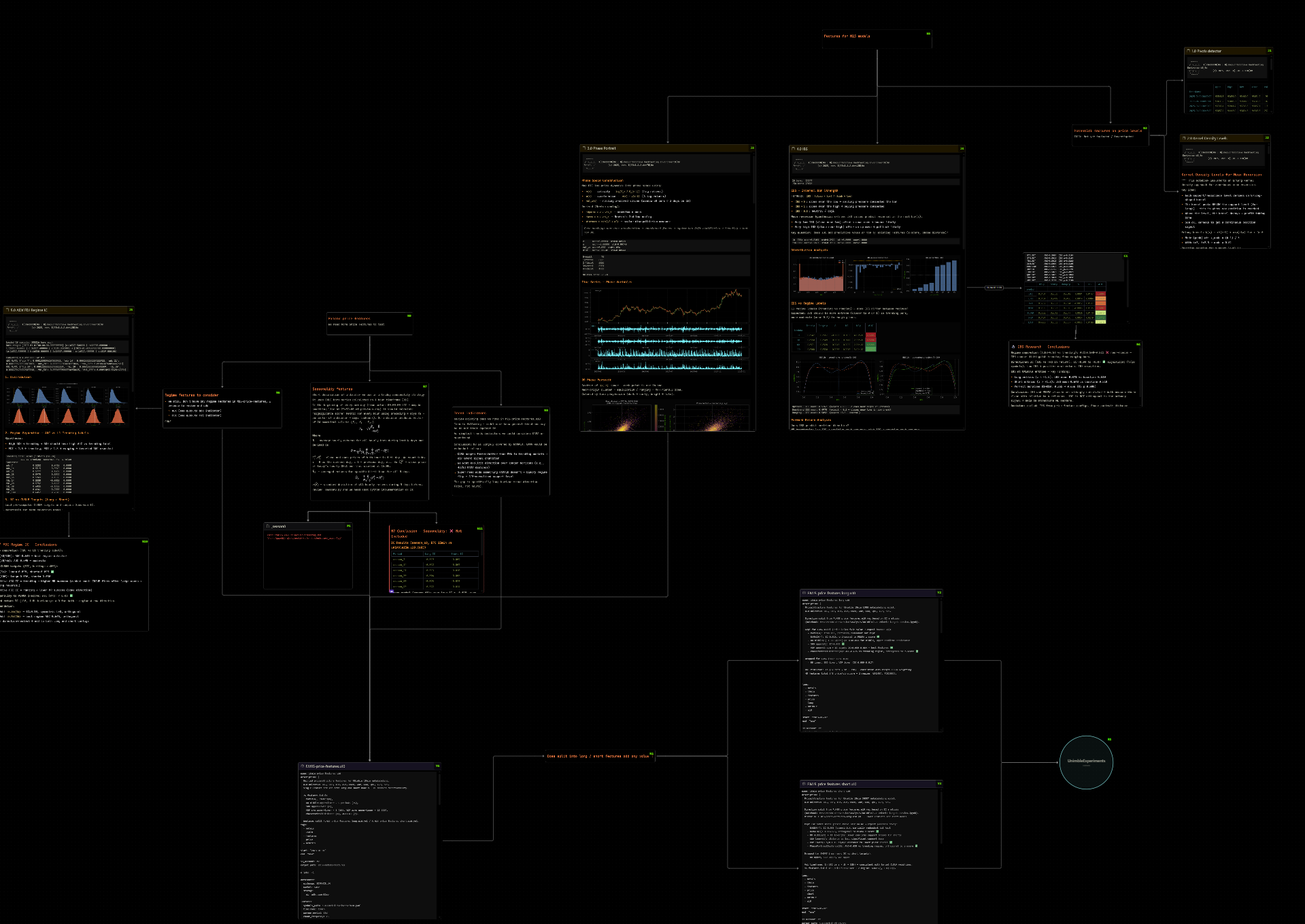
Navigate your research by relationship, not by folder. Nodes auto-update when files change on disk.
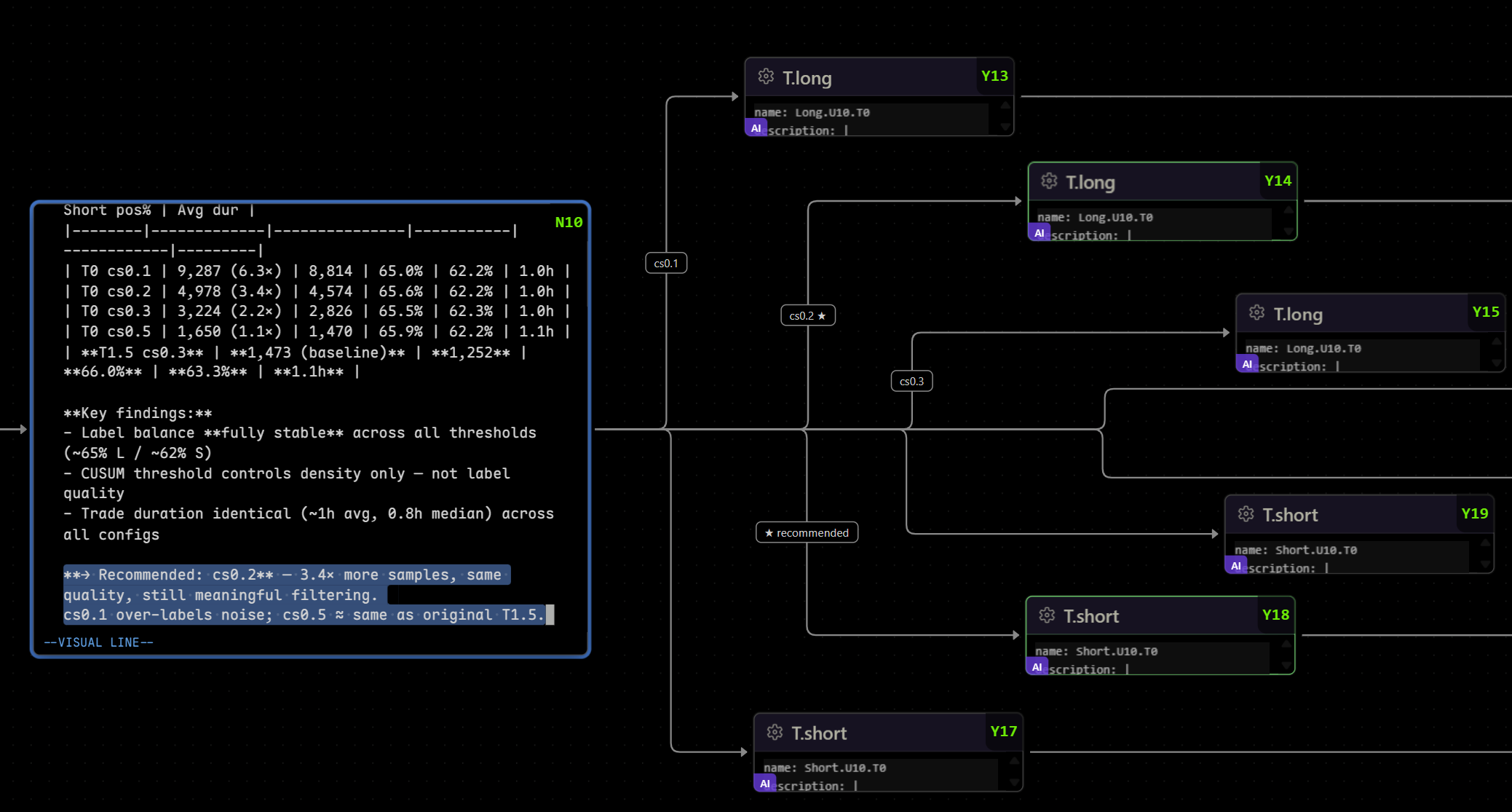
Write notes alongside the artifacts they describe. Monaco editor with full vim bindings — i, o, yy, dd, p all work.
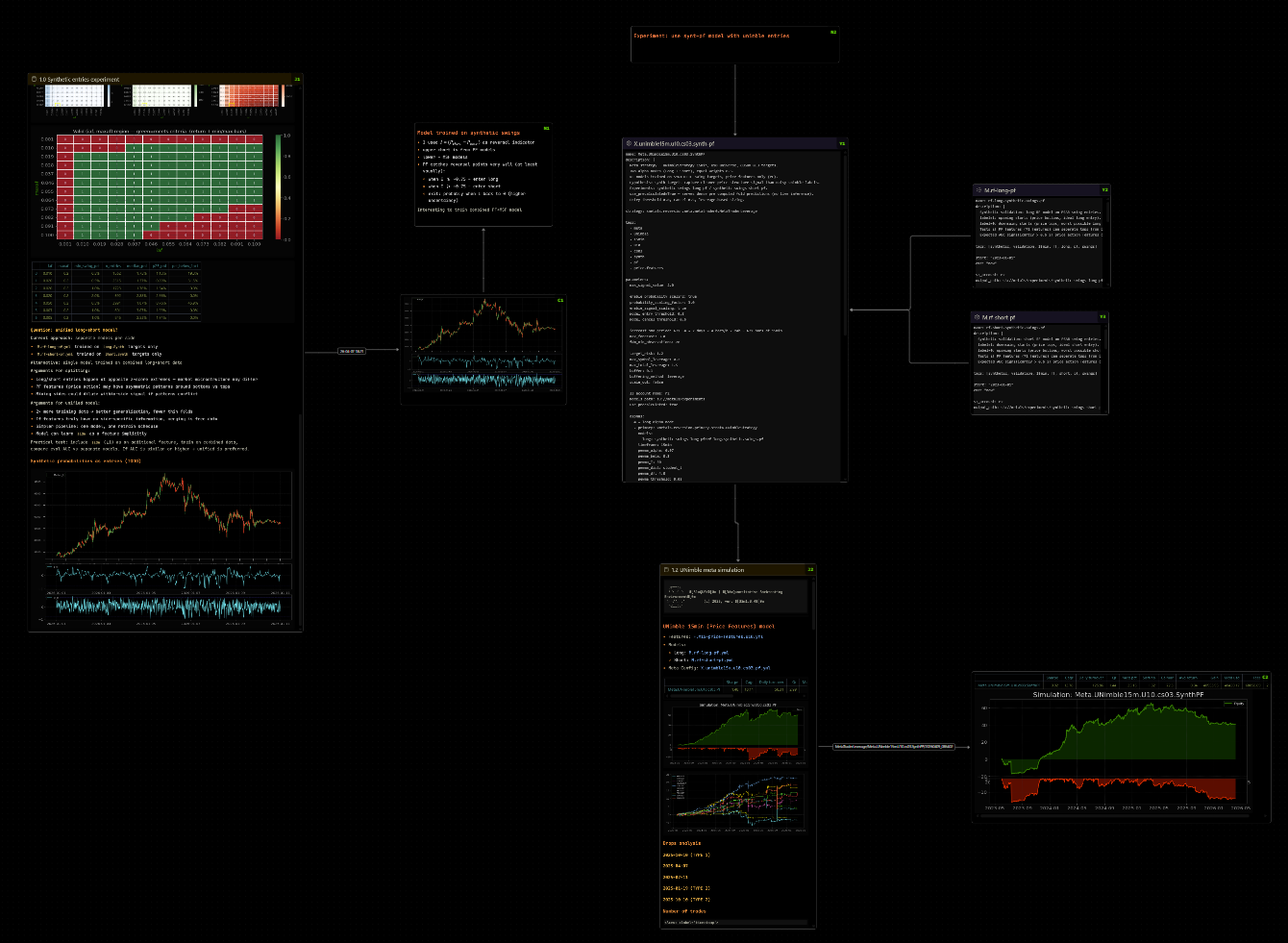
Pin notebook cell outputs as standalone nodes. Drag, zoom, connect — then save and push to git.
Quantitative research (or any deep technical work) generates a web of interconnected files — notebooks, results, code, configs, notes. Most tools force a choice:
| Tool | Problem |
|---|---|
| Obsidian canvas | Requires a desktop app — unusable on headless remote servers |
| Notion | Disconnected from code, slow, no git |
| Plain markdown | No visual overview of relationships |
Skena brings the spatial canvas experience into VS Code, so it works wherever VS Code works — including over Remote SSH on headless servers.
It reads and writes the standard JSON Canvas 1.0 format, so .canvas files are fully compatible with Obsidian.
A chat console docked at the bottom of the canvas itself, not in a side panel. It sees what you see and acts on the canvas directly.
- Canvas-aware context — the companion receives the focused node's content, its 1-hop connections, and your current viewport: zoom level, on-screen node labels, and the verbatim text visible in the focused node.
- Acts on the canvas — it can add notes, read and update nodes through Skena's bundled MCP tools. New notes land next to the node you're focused on.
- Three providers (
skena.ai.provider):
| Provider | What it is | API key |
|---|---|---|
harness |
Drives your local Claude Code CLI | None — uses your existing /login |
anthropic |
Anthropic API directly | skena.ai.apiKey |
openai-compat |
Ollama, LM Studio, Groq, OpenAI, any OpenAI-format endpoint | endpoint-dependent |
- Harness mode is the flagship: one persistent Claude Code process per canvas, streaming responses, full agent tool use (file reads, shell, MCP), and session resume when you reopen a canvas. Permission mode, allowed tools, and reachable directories are all configurable.
- Live tool feedback — watch Claude Code work: tool calls (edits, shell, canvas ops) stream in as cards with running→done status, thinking blocks, and a live token/cost meter. The full timeline is saved with the canvas.
- Per-canvas model and effort — the picker at the right of the input bar sets the AI model (and the effort level) for this canvas; the choice is saved in the
.canvasfile (portable), overriding the globalskena.ai.model. - Input bar — always on screen, even with the conversation folded. A Monaco editor with vim bindings that grows with each line up to 8 lines.
+attaches the nodes you picked withSpace, a file from the workspace, or an image from the clipboard; attachments show as chips at the start of the input. While the agent works, the send button becomes Stop. - Conversation — above the input bar, up to 60% of the view's height. Each turn starts with your prompt on one line (
› prompt); click it to fold or open the turn. Under each answer: copy it, or add it to the canvas as a note connected to the focused node. New text scrolls the view only when you are already at the bottom, so you can read back while an answer streams. - Width — drag either side edge; 900 px by default, saved per canvas.
- History — markdown + math (KaTeX + Typst) in answers, per-canvas history persisted in a
.skena.jsonsidecar, Reset (new session) and Compact (summarise to shrink the context) in the header.
| Key | Action |
|---|---|
Alt+` |
Fold / open the conversation (the input bar stays) |
Alt+I |
Toggle focus between chat input and canvas |
Ctrl+Enter |
Send |
Shift+H/J/K/L |
Scroll the conversation from vim normal mode in the input |
Ctrl+V on the canvas turns the clipboard into the right node: screenshots and notebook chart/table outputs become cell nodes, copied files become file nodes (a .canvas file becomes a portal), URLs become link nodes, a path/to/x.canvas#N3 reference becomes a diamond that opens that canvas on node N3, text becomes a text node — all connected to the focused node with an edge. yy then Ctrl+V still duplicates canvas nodes.
Drag files from the VS Code Explorer onto the canvas — several at once work, and a .canvas file becomes a portal. A file node refreshes when its file changes on disk.
Plotly figures render live in cell nodes — from notebook outputs (go.Figure), via the Alt+P pin, or by pasting fig.to_json() output onto the canvas. Pan, zoom, and hover work inside the node. (Jupyter FigureWidget outputs carry no offline figure data, so use go.Figure or paste the figure JSON.)
- Markdown (
.md) — rendered with frontmatter header bar, status badges, scrollable content.- Math — KaTeX (
$…$,$$…$$) and Typst (%…%inline,%%…%%block) compiled to SVG.50%and prose stay literal. - Links — clickable; file links open in VS Code, with line anchors:
[go](./m0.py#L42)opens at line 42.
- Math — KaTeX (
- Jupyter Notebooks (
.ipynb) — code cells, markdown cells, chart outputs, base64 images - Python / YAML — syntax-highlighted code preview via Shiki
- HTML (
.html) — rendered inside an isolated shadow root (its styles can't leak into the canvas) - Images — scaled to fit the node
Turn code nodes into a live notebook. Run Skena: Add Kernel to drop a kernel node (configure servers in skena.jupyter.kernels as {name, hubUrl, token}), connect a code node to it with an edge, and execute.
- Run —
Shift+Enter,Ctrl+Enter,Alt+R, orAlt+Jinside the editor, or the ▶ button in the node header (disabled until the cell is connected to a kernel). Running a cell first runs any unrun upstream cells it's wired to, in dependency order. - Live output — stdout,
tqdmprogress bars, and a subset ofipywidgetsstream into a connected output node as the cell runs. - Interrupt —
Ctrl/Cmd+C(with confirm), the ■ stop button, or right-click while a cell is running. - Restart / shutdown from the kernel node — cell run-flags reset so they re-run cleanly against the fresh namespace.
- Agent runs too — the AI companion can execute cells over MCP and you see the same live output.
- New code cell — pick Code node in the
Ctrl+NorAlt+Xmenu, or pressoon a code cell for a new one under it in the same column. - Height follows the code — a cell is 100 px tall for up to three lines and grows in 50 px steps as you type, up to 900 px; fewer lines shrink it again.
- Preview looks like the editor — out of edit mode the cell is drawn with the editor's own highlighter and colours, bracket pairs in matching colours, relative line numbers and indent guides, so entering and leaving edit mode does not move or recolour the text.
skena.markdownTheme themes rendered markdown in nodes and chat:
vscode(default) — adapts to your active VS Code color theme.factors— a dark research-terminal theme: teal headings, grid-lined tables, bundled IBM Plex fonts, and syntax-colored code blocks.skena.markdownMaxWidthcaps line length for a readable column.
Navigate the canvas without touching the mouse:
| Key | Action |
|---|---|
h / j / k / l |
Move focus to the nearest node in that direction within the focused node's row (h/l) or column (j/k); when that row or column is empty, the next one over, if it lies within one grid step. h/l stay in the section |
g |
Label every connection of the focused node — in and out, all four borders — for 1.5 s |
g then a label key |
Focus and reveal the node at the other end of that connection. The first connection of a border is its own vim key (left h, top k, right l, bottom j); the rest take 1–9 then a–z minus g h j k l, walked left, top, right, bottom |
gg / G |
Focus the first / last node of the focused node's section (by y, then x) |
Shift+( / Shift+) |
Fold / unfold the current section (same action as the rail chevron) |
Enter / Ctrl+Enter |
Open focused file in editor (beside / maximized); on a knowledge node, open its source in the server's web reader, as ↗ does |
Alt+X then h/j/k/l |
Add a node connected in that direction, picked from a menu: new text note, code node, URL, or a vault / workspace file. In a section the new node takes the column slot beside, below or above the anchor and that column packs. On a code cell h / l branch left / right: l goes into the nearest column to the right that already holds a code cell, on the cell's row (under the cell's own output when that column is the one its output sits in) |
Ctrl+Shift+H/J/K/L or arrows |
Add connected empty text node in direction and start editing it |
Space |
Pin node for group movement or edge connection |
Shift+H/J/K/L |
Move pinned nodes one grid step, and the view follows them — or scroll focused node's content if nothing is pinned |
c |
Toggle edge between pinned node and focused node (connect / disconnect) |
o |
New node below the focused one — on a code cell a new code cell in the same column, with the cells under it pushed down |
yy / dd / p |
Copy / delete / paste nodes (canvas clipboard) |
u / r |
Undo / redo (50-entry canvas history) |
Ctrl+U / Ctrl+D |
Scroll focused node's content up / down (vim half-page) |
w / W |
Widen / narrow focused node |
e / E |
Expand / shrink focused node height |
z / Z |
Zoom in / out |
Shift+Alt+H/J/K/L |
Pan the viewport (vim scroll semantics) |
Shift+C |
Center viewport on focused node (zoom unchanged) |
Alt+Shift+C |
Center on focused node and zoom to readable scale |
m <key> / ` <key> |
Set / jump to mark (Ctrl+M opens the marks panel) |
` ` |
Back to the previous node (press again to return) |
Ctrl+N |
Add a node from the menu: new text note, code node, URL, or fuzzy vault / workspace search |
/ |
Search within canvas |
Ctrl+F |
Knowledge search (see below) |
Alt+P |
Pin hovered notebook cell output as a standalone node |
Ctrl+Shift+V |
Paste clipboard as a cell node |
Ctrl+V |
Paste clipboard as node — image/table → cell node, file → file node, URL → link node, text → text node; after yy pastes the copied nodes |
Alt+` / Alt+I |
AI chat: fold / open the conversation · focus toggle |
Sections are horizontal lanes running down the canvas — a node belongs to the lane whose range holds its top edge. The rail is the vertical strip on the left: one segment per section, in that section's colour, carrying its label and title.
- Segment controls — the chevron folds / unfolds the section (folded members are hidden, not moved), ▶ runs its code cells in order, the dot binds a Jupyter kernel (hollow ring = none bound), ✕ deletes the section and its nodes after a confirm. Double-click the title to rename it.
- Right-click a segment for the full menu: Fold / Unfold, Run section, Reflow section, Kernel…, Rename…, Delete section — plus Start / Interrupt / Restart / Shutdown kernel when a kernel is bound.
- Reflow section snaps every code cell onto the nearest column, closes the holes in each column, sits the column pairs one gap apart left to right, and moves the notes a cell covers down out of the way. It is the only whole-section move — every other edit touches one column.
+at the bottom of the rail adds a new section under the last one.- Sections fit their content: a node placed past a section's bottom edge grows that section, slack shrinks it (never below the minimum), and the sections and nodes below move by the same amount.
- Connections hold rows — a connection drawn from the side of one node to the side of another holds the target on the source's row: when the source moves, the target follows, and dragging the target far away keeps the connection. The hold is stored on the connection.
- Nothing moves up past a held node — a cell added under a node held on a row stays under it. A node you drop above a held node keeps its place and the held node moves under it. A new or resized output never pushes the cell above it down: when it would cover a held cell's output, only that output moves under it, and the held cell keeps its row.
- A folded section draws its title and its node count (plus the kernel name when one is bound) in the band it collapses to, and
Ctrl+Mlists every section above the bookmarks — choosing one unfolds it and focuses its first node.
From MCP — canvas_add_node takes after (a code cell: the new code cell goes under it in the same column) and forkOf with side (right by default: on that cell's row in the nearest column past its output column that holds a code cell, or under the cell's own output when that column is where the output sits; else a new column pair right of the cell's pair; or left: a new column pair left of the cell's column); both place the node themselves and ignore x/y. canvas_reflow_section runs the same reflow as the rail menu. Every MCP write follows the same engine rules as the UI — the touched column is packed, the column pairs to its right are pushed clear, covered notes move down, no node crosses a section boundary, and the sections re-fit afterwards.
Search a knowledge server from the canvas and put a result on it as a node. The node keeps its own copy of the matched section, so it still reads with the server unreachable. First server: crtx (the kb MCP).
Configure at least one server in settings.json (shared) or .vscode/settings.local.json (personal — put the token there):
Ctrl+F opens the dialog (/ still opens find-in-canvas):
| Key | Action |
|---|---|
| type | search the server as you type |
#tag |
filter by tag, when the server supports tags |
Tab |
cycle the vault, when the server has more than one |
↑ / ↓ |
move the highlight |
Ctrl+J / Ctrl+K |
same as ↓ / ↑ |
Enter |
add the highlighted result — right of the focused node, or centred if nothing is focused — and close |
Shift+Enter |
the same, with the whole document the highlighted result belongs to |
Esc |
close |
Ctrl+F |
back to the input, from anywhere in the dialog |
Each result row shows the heading it matched (the file's name when there is no heading), then the vault, the file path and the tags on the line below.
When several results come from one file, they are listed together where the best-ranked one was: a line with the file's name and N sections, which the highlight skips, then one indented row per section, › <heading> (› whole file for a result with no heading).
A picked result becomes a knowledge node:
- header:
<server> › <title> · <age>, where<title>is the heading the server matched, then its file in brackets, e.g.2026-09-19 — state (projects/skena.md); a result with no heading shows the file alone. ●before the title while the cached text has changed since you last looked at the node; it clears when you focus the node.!after the age when the last refresh failed — hover the header for the reason.↻refreshes the node now.↗, orEnteron the focused node, opens the source in the server's web reader.- the body is the cached text, rendered as markdown, read-only.
On canvas open, every knowledge node older than refreshAfterHours is refreshed in the background, three at a time per server, without blocking the canvas. A server that does not answer is skipped for the rest of that run.
From MCP — canvas_add_knowledge {canvasPath, server, uri, title, text, after?, x?, y?} puts a result you already read on the canvas as a knowledge node (the MCP process holds no server token, so an agent searches the server itself and passes back the text); canvas_refresh_knowledge {canvasPath, ref} marks a node stale so the canvas refreshes it the next time it's open.
To add another server kind, write one adapter file under src/extension/knowledge/adapters/ implementing KnowledgeProvider (src/shared/knowledge/types.ts), and register it in registry.ts.
Double-click any text node to edit it inline — full Monaco editor with vim keybindings, markdown syntax highlighting, and VS Code theme integration.
Point Skena at a folder of .md files (a vault). Use Ctrl+N to fuzzy-search and add any entry as a node. The vault is watched for changes — nodes update automatically.
Select nodes → right-click → Move to sub-canvas — selected nodes move to a new .canvas file and a portal node replaces them. Click the portal to open the linked canvas in a new tab.
| Zoom | What you see |
|---|---|
| Very zoomed out | Colored rectangles + title only |
| Overview | Title + status badge |
| Reading distance | Full rendered content |
| Zoomed in | Full detail, scrollable |
On activation, Skena auto-deploys a local MCP server to .vscode/skena-mcp.js so Claude Code and other AI tools can read and write canvas nodes programmatically.
All processing runs in the extension host on the remote machine. No local toolchain needed.
- Install the extension from the marketplace
- Create or open any
.canvasfile — Skena opens it automatically as a visual canvas - (Optional) Configure your vault in
.vscode/settings.json:
{
"skena.vaults": [
{ "name": "v1", "path": "~/vault" }
],
"skena.vaultDirectories": ["notes", "knowledge", "logs"]
}- Press
Ctrl+Non the canvas to fuzzy-search your vault and add nodes - (Optional) Enable the AI companion — if you have Claude Code installed and logged in, this is all it takes (no API key):
{
"skena.ai.provider": "harness"
}Then press Alt+` on any canvas to open the chat.
{
// Named vaults — supports multiple. URI: vault://<name>/path/to/file.md
"skena.vaults": [
{ "name": "v1", "path": "~/vault" }
],
// Directories to scan in each vault
"skena.vaultDirectories": ["alpha", "knowledge", "logs", "inbox"],
// Auto-save debounce (ms)
"skena.autoSaveDelay": 500,
// Rendered-markdown theme (nodes + chat)
"skena.markdownTheme": "vscode", // vscode | factors
"skena.markdownMaxWidth": 0, // max chars per line in md nodes (0 = unlimited; try ~88)
// Jupyter servers for kernel nodes
"skena.jupyter.kernels": [
{ "name": "local", "hubUrl": "http://localhost:8888", "token": "…" }
],
// Knowledge servers for Ctrl+F — see "Knowledge search" above
"skena.knowledge.servers": [],
// Show source cells alongside notebook outputs
"skena.notebook": {
"showSourceCells": false
},
// AI companion — pick a provider
"skena.ai.provider": "harness", // harness | anthropic | openai-compat
"skena.ai.model": "sonnet", // model id or CLI alias
// harness provider (Claude Code CLI — no API key)
"skena.ai.harnessPermissionMode": "acceptEdits",
"skena.ai.harnessAllowedTools": ["Bash"],
"skena.ai.harnessAddDirs": ["~/projects"],
"skena.ai.harnessPath": "claude", // claude CLI on PATH by default
"skena.ai.harnessMaxTurns": 40, // agent turns per message before it auto-continues
"skena.ai.session.restore": true, // resume the canvas conversation on reopen
// anthropic / openai-compat providers
"skena.ai.apiKey": "", // or ANTHROPIC_API_KEY env var
"skena.ai.baseURL": "http://localhost:11434/v1" // e.g. Ollama
}Multi-root workspaces:
skena.*settings are window-scoped — VS Code ignores them in folder-level.vscode/settings.jsoninside a multi-root workspace. Put them in thesettingsblock of your.code-workspacefile instead.
Skena reads and writes standard JSON Canvas 1.0 — the same format used by Obsidian. Files are plain JSON, version-control friendly, and diffable.
Supported node types: file, text, group, link, code (code cell), cell (output or standalone cell), kernel (Jupyter kernel), knowledge (knowledge-search result with its cached text), noderef (reference to a node in another canvas), portal (link to another canvas), chat (AI terminal, UI only)
Extension node types (everything past link) are silently ignored by Obsidian, so files remain fully interoperable.
.canvas files created in Skena open correctly in Obsidian and vice versa. Vault .md files use standard YAML frontmatter — readable by Obsidian, Foam, and any markdown tool.
{
  "skena.knowledge.servers": [
    { "name": "crtx", "kind": "crtx", "url": "http://localhost:8788/mcp", "token": "…" }
  ],
  "skena.knowledge.refreshAfterHours": 24   // - default; how old a cached copy gets before it's refreshed on open
}