


Play a film on your TV by name.
Someone recommends The Matrix during the day. What usually follows is a chore: scrolling a streaming service's feed, downloading the film in advance, or typing its name into the TV browser with a remote. torrcast is for when you already know what you want to watch. That evening you type cast the matrix and the film plays on your TV, with no interface to fight.
torrcast finds films, series and anime, chooses a playable version and an audio track, and streams to Chromecast. Start watching from the terminal, Telegram or Home Assistant.
Install · Watching · Home Assistant · Telegram · Commands
- Keep watching. Episodes play one after another. At the end of a season, torrcast looks for the next one. Stop for the evening and resume from your saved position tomorrow.
- Keep your preferred audio. Track selection follows the language you chose for torrcast. Pick a different track or studio and it remembers your choice for that title.
- Read ahead while you watch. torrcast caches the film in the background. Once it reports that the whole film is on disk, you can finish watching and seek without an internet connection. The computer and TV still need their local connection.
- Let torrcast handle the format. It converts video when the receiver needs it and reports changes to the version, audio or quality as it goes.
| Component | Requirement |
|---|---|
| TV | A Chromecast receiver, built into the TV or in a connected streaming device. |
| Computer (ideally a server) |
Debian 12+ or Ubuntu with systemd, or macOS. The native Mac installation has been tested on Apple Silicon. |
| Storage | About 33 GB free for read-ahead and a system reserve; allow extra room for dependencies and the streaming cache. |
| Network | Internet access and a trusted home network shared by the computer and receiver. |
torrcast is designed to stay running on a home server, a VM or an LXC container, ready when you want to watch. You can also run it on a Mac; keep the computer awake during playback. For a VM or container, make sure it and the receiver can reach each other on the LAN. Video travels from that computer to your TV over the local network.
Run this on the computer that will stream to the TV:
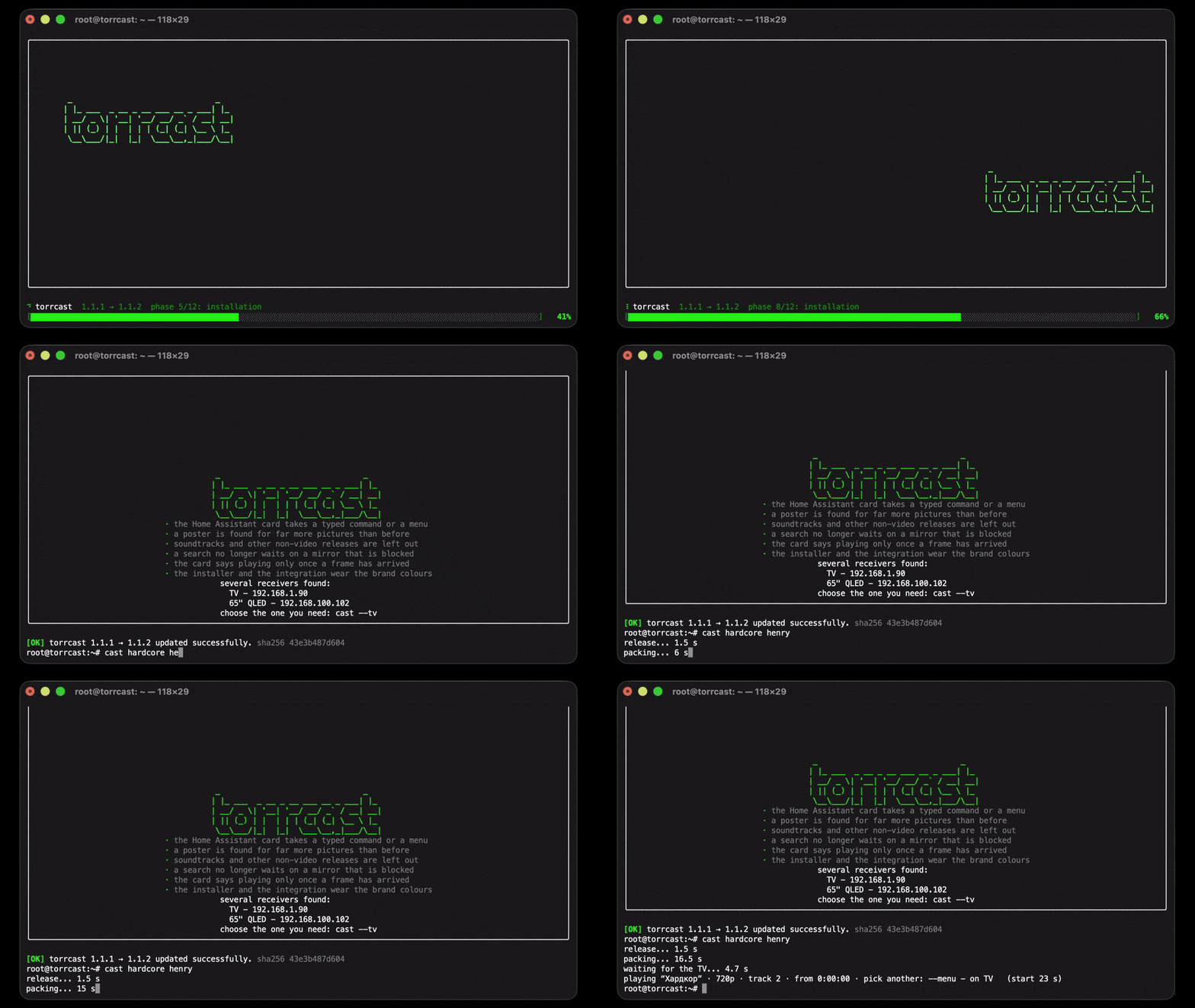
curl -fsSL https://torrcast.anysda.space | shThe installer downloads the latest release, checks its SHA-256 checksum, installs the dependencies and sets up background services. It asks for administrator privileges when needed and configures the receiver automatically if it finds exactly one. The installation uses English; cast --ru switches the saved language, including terminal messages, bot replies and audio preferences, and cast --en switches it back.
Then put a film on:
cast the matrixIf several receivers were found, choose one with cast --tv, then run the film command again. You can also set an address directly with cast --tv <ip>.
Installing on macOS
The same one-line install works natively on macOS. Run it from your usual administrator account. The installer sets up Homebrew if needed and uses launchd for background services.
Playback runs as root to reach the local network from a background service. The installer adds a passwordless sudo rule for the installing user, limited to the cast command. You still launch films with cast the matrix.
The bootstrap requires sha256sum before it reaches Homebrew setup. If it stops with sha256sum is required but is not in PATH, use the repository installation below, which starts install.sh directly. If macOS asks whether to allow incoming connections, allow them so the receiver can reach the video stream.
Installing from the repository
git clone https://github.com/anysda/torrcast
cd torrcast
./install.sh
The installer handles dependencies and administrator privileges here too. On ARM Linux, a working ffmpeg 6.1+ must be available if the distribution does not provide one; the installer's fallback Linux build is for x86_64.
Usually, the title is enough. Add --menu to choose a film yourself, for example when a search finds several parts of a series:
$ cast the matrix --menu
  1. The Matrix (1999) · IMDb 8.7 · 2 h 16 min
     A science fiction action film written and directed by the Wachowskis.
  2. The Matrix Reloaded (2003) · IMDb 7.2 · 2 h 18 min
     A science fiction action film, the second in The Matrix series.
  3. The Matrix Revolutions (2003) · IMDb 6.7 · 2 h 9 min
     A science fiction action film, the third in The Matrix series.
Enter - “The Matrix (1999)”, item 1 of 3
What are we watching? [1]:
Press Enter for the named default, or enter a number. Results, ratings and available versions can change. torrcast groups versions of the same film together, so you choose the film once; it handles the playback selection.
For a series, add a season and episode:
cast kim possible s1e1The next episode starts automatically. cast stop saves your position, and cast with no arguments resumes the last series. To resume a film, ask for its title again.
Pause and seek with your TV remote. Once playback has started, you can close the terminal or disconnect SSH. torrcast manages the cache automatically; there is no media library to organise.
Put torrcast on your dashboard: start a film, pause, seek, adjust the volume or skip to the next episode. The integration connects to torrcast over your local network.

- Install torrcast using the command above, then use the button to add its custom repository in HACS and download the integration.
- Restart Home Assistant. Under Settings > Devices & services, confirm the discovered torrcast device. If it does not appear, add the torrcast integration manually using the computer's IP address and port
8479. - Add its media player to your dashboard. Open the media browser: instant takes a title and starts playback; menu searches and lets you pick a result.
Assist can control playback too. Starting a film by name depends on the assistant's language support: built-in Assist supports that request in English, but not Russian in the tested setup. Russian title entry in the media browser works independently of that voice limitation.
Send cast the matrix from the sofa and use the playback buttons in the chat. The bot shows progress while the film starts, then gives you pause, stop, volume and 30-second seek controls. It also controls playback started from the terminal or Home Assistant.
Set it up on the torrcast computer:
cast -tgCreate a bot with BotFather, open a chat with it and press Start. In the setup menu, enter the bot token and your chat ID, then choose Test and save. The setup sends a test message and enables the bot service, which starts again after a reboot. The bot accepts commands only from the configured chat.
Finding your chat ID
Before enabling the bot service, send your new bot a message. Open https://api.telegram.org/bot<TOKEN>/getUpdates in a browser, replacing <TOKEN> with the token from BotFather. In the response, copy the number at result[].message.chat.id into the setup menu's Chat ID field.
Send these as ordinary messages:
cast the matrix
cast kim possible s1e1
cast
cast stop
The phone sends commands through Telegram; the video stream stays between your computer and TV.
| Command | Action |
|---|---|
cast <title> |
Find a film or series and play it. |
cast <title> s1e1 |
Play a specific episode: season and number. |
cast |
Resume the last series. |
cast stop |
Stop playback and save your position. |
cast status |
What is playing, your position and read-ahead progress. |
cast <title> --menu |
Show the titles found and ask, instead of playing right away. |
cast <title> --pick N |
Title N from the menu, without asking. |
cast <title> --new |
The same release, file and track from the start. |
cast <title> --voice |
Choose an audio track from a menu. --voice N or --voice STUDIO picks and remembers it. |
cast voices <title> |
Show the available tracks before starting playback. |
cast releases <title> |
List releases grouped by title. --release N with the same query plays that one. |
cast <title> --dry |
Run the whole selection without casting. |
cast --tv |
Find receivers on the network and pick one. cast --tv <ip> sets the address directly. |
cast -tg |
Open the Telegram bot setup menu. |
cast --ru / cast --en |
Switch the language and remember the choice. |
cast doctor |
Check the services, network and receiver. |
cast log --since 2d |
Diagnostic trail. --since accepts 2d, 12h, 30m or a YYYY-MM-DD date. |
cast --upgrade |
Update to the latest release. |
cast --version |
Show the version. |
cast -h |
All commands and options. |
cast --upgradeUpdates preserve your settings and receiver selection. The updater refuses to run while something is playing.
If a film will not start, run cast doctor to check the services, network and receiver. cast log --since 2h shows recent playback events; cast -h lists the commands and options.
For a bug report, open an issue with the command you ran, your OS and receiver model, and the relevant diagnostic output.
The torrcast code is distributed under the MIT licence. The licence covers the code only and grants no rights to whatever you watch with it: the sources and their legality are the user's responsibility.