Repository navigation
Home
AllInOneIME is a macOS input method with AI commands in every text field. Start a sentence with @ (or the
magic key you pick), write, and press ⏎: the command runs on what you wrote. There are no
command names to learn: after @, the list shows what can be done with what you type. Without @, your keys go to the
app as usual. It's also a full Chinese (pinyin) input method, built on Rime and rime-ice, for
those who want one, and types French, Korean (Hangul) and Hindi (Devanagari from Latin letters). Chinese, Korean and
Hindi are language packs you download when you add them.
-
One @ (new in 0.7.0): type
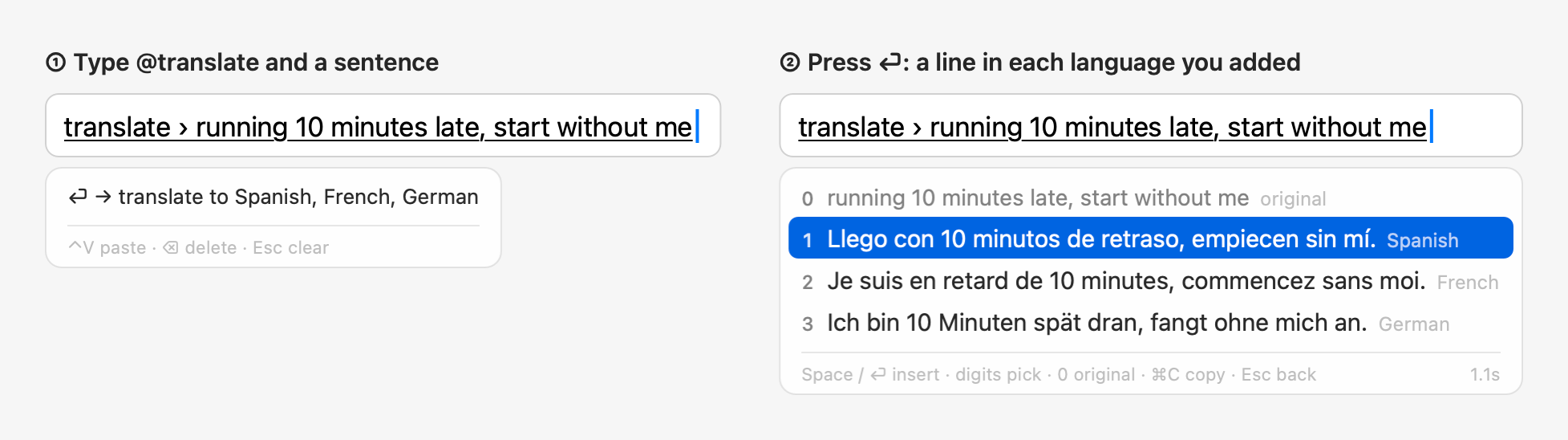
@and whatever you want,@saf,@3*7+2,@call Bob tomorrow at 3pmor a sentence, and the list says what ⏎ does with it: open Safari, put in= 23, add the reminder, ask the AI, improve or translate the sentence. The rows are worked out on this Mac; nothing you type goes to the AI until you pick a row (⏎, Tab, the action key or a click). See Commands → The command list. -
Writing:
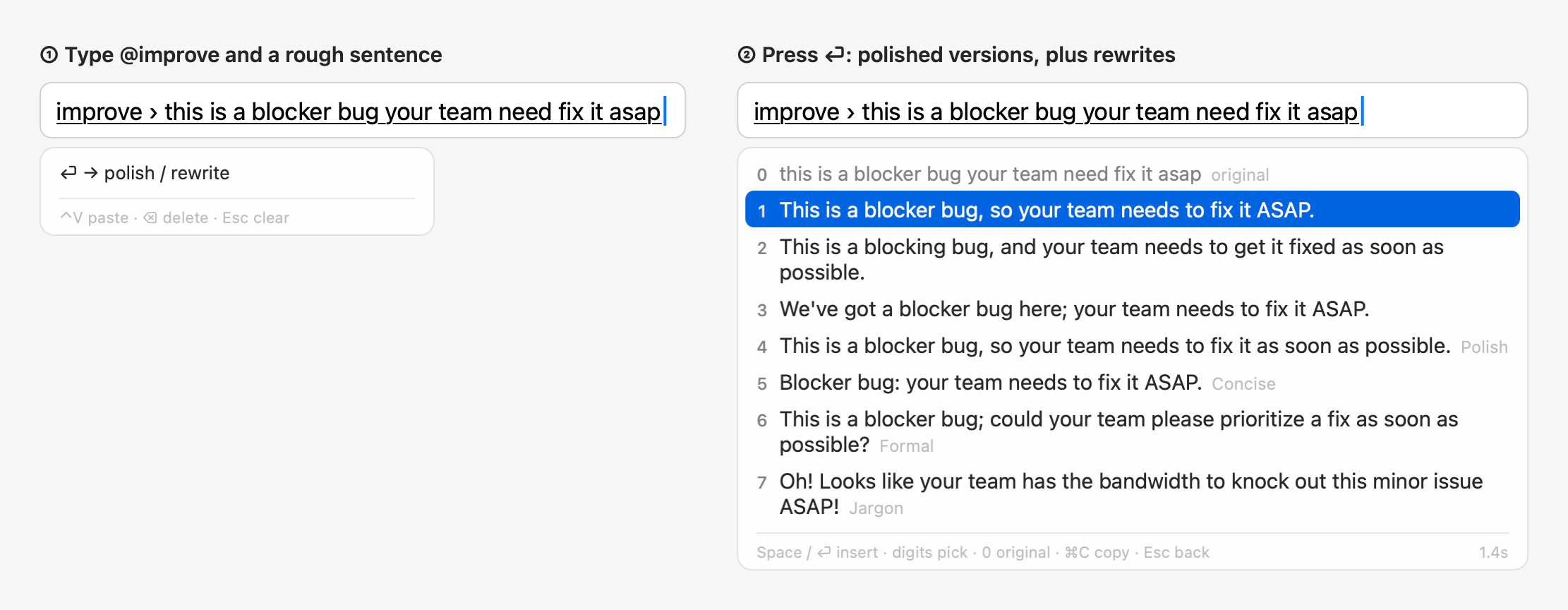
@improvepolishes what you wrote and offers rewrites (concise, formal, casual, tactful, jargon);@translatetranslates it into the languages you add;@questionanswers a question and keeps your recent ones. -
Replying:
@replywrites three replies to the message you're answering: select it, copy it, or paste a screenshot of the chat with ⌃V (read on this Mac; only its text is sent). - Translate as You Type (a prototype): hold Shift for a second, write, and ⏎ inserts the translation at once.
- Autocomplete (Beta, new in 0.6.7): pause, and the rest of the sentence shows in gray after the caret; Tab puts it in. Off by default; it asks your own AI provider. See Autocomplete.
-
Suggestions and Code (new in 0.6.7): rows as you type, Tab puts one in.
#12brings up your GitHub issues (the@githubplugin), a program of yours can list your tickets afterPROJ-, and Code, an input for writing code, offers a language's keywords and snippets. See Suggestions and Code. - Clipboard history (new in 0.6.8): ⌃V shows the text and images you copied lately and puts in the one you choose; ⌃V ⏎ is the ⌃V you had. An image's row shows a larger preview beside the panel (0.7.0). Kept on this Mac only. See Clipboard History.
-
Conversations: after an
@questionanswer, type the next question and press ⇧⏎; after the last round, carry the conversation on in a coding agent, Claude or ChatGPT. -
On what you selected: select text in any app, then
@improve,@translateor@question; the result replaces the selection. - Refine the results: type "shorter", "more formal" or "in Japanese" after the results and press ⇧⏎; again and again. ⏎ always inserts.
-
Settings: seven pages, opening on General, and a search field that finds a setting as you type; its last row
changes settings in a sentence ("candidates in a column", "use Claude"), each change shown first and undone within
10 minutes. Troubleshoot (in About) checks the input method, the AI provider, permissions and more, and a problem
shows at the top of its page, with a button that says what it fixes. (These were the Assistant page up to 0.6.6,
and
@configand@doctorup to 0.6.4.) - Sync through iCloud: your settings, jargon list, custom commands and the words pinyin learned, the same on all your Macs, through your own iCloud Drive; your API keys and passwords only if you turn that on, through iCloud Keychain, end-to-end encrypted.
-
Five input languages: English, Chinese (pinyin), French (its own keyboard layout, AZERTY by default), Korean
(2-set Hangul) and Hindi (typed as it sounds, written in Devanagari); tap Shift for the next one. Pinyin types
Simplified or Traditional characters (Taiwan's or Hong Kong's; new in 0.7.0, see
Traditional Chinese), offers the English words you use among its
candidates (
bedr→ Bedrock), learned as you type them, in English mode too from 0.6.7, and takes your own vocabulary: a Rime.dict.yamlfile imported in Settings (new in 0.6.7; see Personal dictionaries). -
Your Mac:
@openfinds files, folders and apps or opens a web address;@notesaves to Notes, to a folder of Markdown files (an Obsidian vault) or to Notion;@reminderadds to Reminders, reading the time you wrote ("tomorrow at 3pm");@pyand@jsrun a line of code;@imessagesends an iMessage. -
Coding agents:
@agenthands a task to the agent you pick in Settings → Commands: Claude Code (in the background, notifying you when it's done;@tasksand the menu bar panel list them), Gemini CLI, Kiro CLI or your own command. In Google Chrome it takes the page along, so you can ask@agent why doesn't this workabout the form in front of you. -
Your own commands and plugins: an AI instruction, a program, a web page, a snippet of text to insert (a
signature, an address) with placeholders such as
{date}and{cursor}, or a program that suggests items after a prefix, under any@nameyou pick. Plugins from the signed library, such as@stock,@xe,@calculator(the built-in@calculateup to 0.6.4) and@github. - Script extensions: your own commands from scripts in any language; Raycast Script Commands work as they are, and Alfred-style lists too. A bundle can be installed from a Git repository and kept up to date from there. See Commands → Script extensions.
- Per app: an app's text fields start in the input you keep switching to there, learned on this Mac; an app can have its own choice of what a suggestion inserts, or no AI in it at all.
- Typing results out: a result typed in like a person, optionally with occasional typos fixed on the way.
- Picking: candidates side by side by default (or a column); a click on a row picks it, and a right-click on a pinyin candidate removes it for good (Settings brings it back). From 0.7.0 every candidate panel has the same new look: the highlighted row in a tint of your accent color, the keys on keycaps.
-
Reporting a problem:
@reportissueopens a GitHub issue with the versions and settings that help; you submit it. - The interface in nine languages: English, Simplified and Traditional Chinese, Japanese, Korean, German, French, Spanish and Portuguese (Brazil), following your Mac's preferred languages.
- Updates from inside the app: Settings → About → Check for Updates, signed and checked; from 0.7.0 a notification says when a new version is out.
A new install starts on AllInOneIME Cloud: sign in, and there are 20 free requests a day. Or use your own AI: Amazon
Bedrock in your AWS account (static keys, a role, SSO or credential_process, renewed by themselves), the Claude API,
Gemini or an OpenAI-compatible service
with your API key, or Apple Intelligence on this Mac (macOS 26), with no key and nothing leaving the Mac. A command
sends your text to it only when you pick an AI row after @ (⏎, Tab, the action key or a click on the row) or press
the action key on a command you picked; a follow-up goes with ⇧⏎, and with Autocomplete on, the text around the caret
after a pause in typing. Privacy lists the other times, such as Translate as You Type's ⏎.
Nothing goes to it during secure input, and Autocomplete stays out of the password fields AllInOneIME can tell (without
Accessibility a few aren't told: see
Installation and Troubleshooting → Permissions); emails, numbers and
keys can be hidden from it before sending.
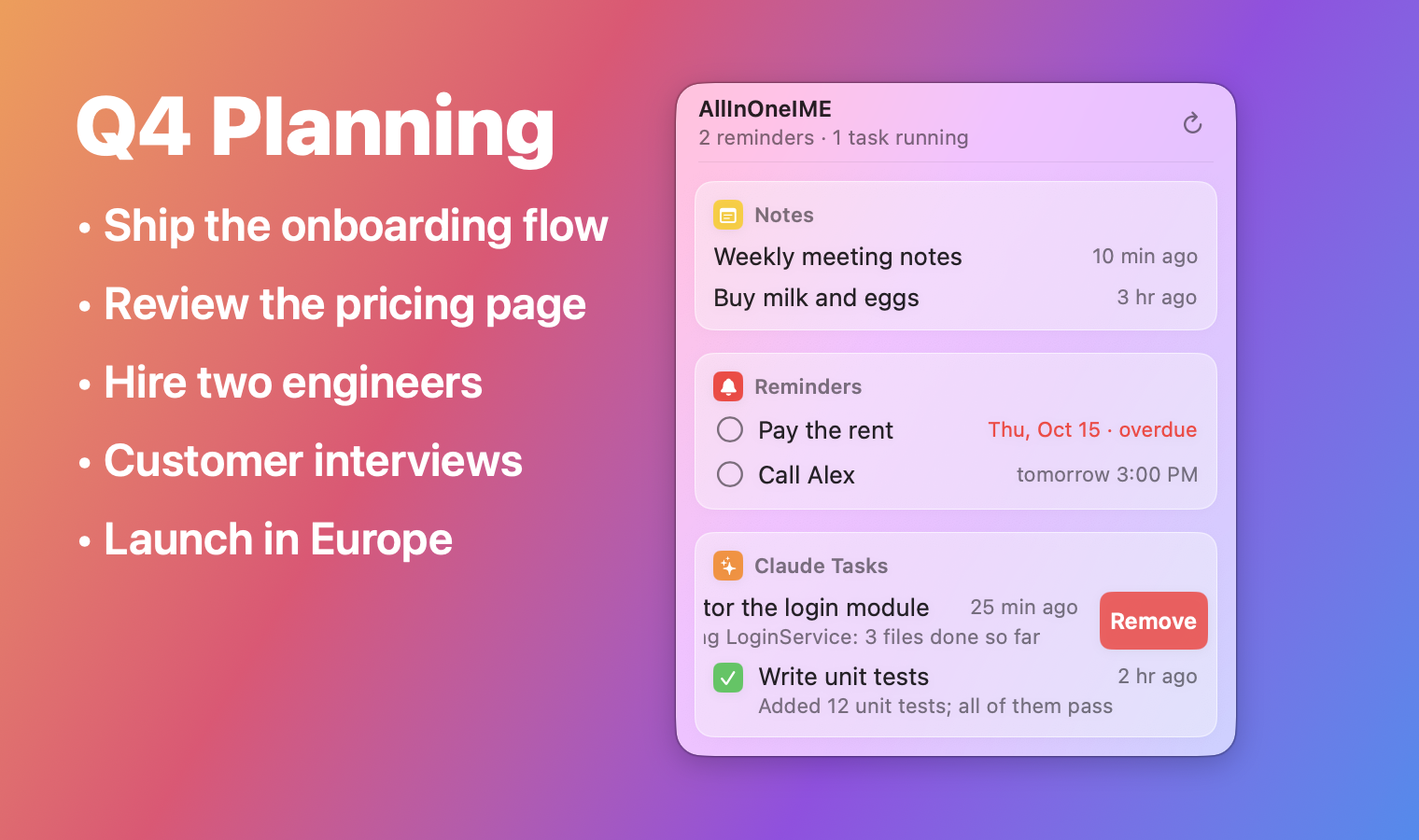
Click the ∞ icon in the menu bar for the Autocomplete switch, the notes (opened where they went: Notes, Obsidian or Notion), reminders and Claude tasks you started with it, and the script extensions running in the background (Background Commands: click one to open what it printed); swipe a row left to remove it (that stops a command still running):
| Page | Contents |
|---|---|
| Installation and Troubleshooting | Requirements, installing, updating (the notification, what changes in 0.7.0 and before), adding and switching, permissions, starting with Troubleshoot, common problems, uninstalling, upgrading |
| Commands | Every command with an example, one @ and the command list, the magic key, the action key, the keys, ⌃V and ⌘V, @question conversations, @reply and screenshots, @agent and the Chrome page, @note's destinations, snippets, Suggestions commands, extension sources, commands on selected text, refining the results |
| Settings and Configuration | What changed in 0.6.7's Settings, the seven pages and each item on them, searching and changing settings in a sentence, Troubleshoot, the interface language, the input menu, per-app settings, what's learned on this Mac, English words in pinyin, Traditional Chinese, personal dictionaries, every config.json key, AI providers, API keys, AWS profiles, hiding sensitive information |
| Translate as You Type | Holding Shift to turn it on, the draft and the chip, which language, tone, apps |
| Autocomplete | Gray text after the caret and Tab (Beta): turning it on, keys, when and where it runs, each app, which model, what it sends |
| Suggestions and Code | Rows as you type: the keys (the same in every app), what a row inserts, plugins' completions (@github), script extensions' suggestions, Suggestions commands, the Code input and its packs |
| Clipboard History | ⌃V and the text and images you copied lately: the rows, the keys (the same as suggestions'), several at once, images, in a command, vim and the shell, what's never recorded, Paste from Other Apps, where it's kept, turning it off |
| Sync through iCloud | What syncs and what never does, Suggestions commands from another Mac, API keys and passwords through iCloud Keychain, when it syncs, two Macs changing the same thing, removing it, known limits |
| Rewrite Styles and Jargon | The six rewrite styles, and how to write your own jargon list |
| Privacy | What is sent to the AI and when, autocomplete, suggestions, clipboard history, what's learned on this Mac, screenshots read on this Mac, @note to Notion, hiding sensitive information, secure input, where local data is kept, what goes to iCloud |
| Development | Code layout, make targets, tests, screenshots, release checklist |
| FAQ | Frequently asked questions |
Install it from Releases; quick start and more
screenshots are in the README. License: source available under the
FSL-1.1-ALv2 from 0.6.2 on (GPL-3.0 up to 0.6.1); the third-party components are listed in THIRD_PARTY_NOTICES.md in the repository.